Citi Online Banking Login: Complete Guide
Managing money from a phone or laptop has become the norm rather than the exception, and Citi customers have plenty of tools to do exactly that. Whether you’re checking a balance between meetings or setting up autopay for a credit card, the Citi login portal is the gateway to nearly every account feature Citi offers. This guide walks you through registering for the first time, signing in, recovering a lost username or password, and keeping your account safe — all in plain, easy-to-follow language.
Table of contents
- Why Online Access Matters
- Step 1: Registering for Citi Online Access
- Step 2: Signing In to Your Citi Login
- Step 3: Recovering a Forgotten User ID or Password
- Logging In Through the Citi Mobile App
- Common Login Issues and How to Fix Them
- Tips to Keep Your Citi Account Secure
- Citi Login vs. Other Banking Apps
- Frequently Asked Questions
- Final Thoughts
Why Online Access Matters
Before diving into the steps, it helps to understand what you actually gain once you’re signed in. A Citi online account typically lets you:
- View real-time balances and transaction history
- Transfer funds between Citi and non-Citi accounts
- Pay bills and manage autopay schedules
- Download e-statements instead of receiving paper mail
- Set up account alerts for low balances or large purchases
- Generate temporary virtual card numbers for safer online shopping
- Add authorized users to a credit card account
These conveniences are why so many customers search for the Citi login page rather than calling a branch or waiting on hold.
Step 1: Registering for Citi Online Access
If you’ve never signed in before, you’ll need to enroll first. The process is quick and usually takes less than five minutes.
- Go to Citi’s official website and select “Register for online access” in the sign-on box.
- Enter your credit card, debit card, or bank account number when prompted.
- Provide identifying information such as the last four digits of your Social Security number or your date of birth — whichever matches what you gave Citi when you opened the account.
- Verify your identity using a one-time passcode sent by text, or by entering your ATM PIN if you’re enrolling with a debit card.
- Create a unique User ID and password, then add a recovery email address.
- Review and accept the terms and conditions to finish enrollment.
Once these steps are complete, you’ll have full access to your dashboard and can move on to everyday sign-ins.
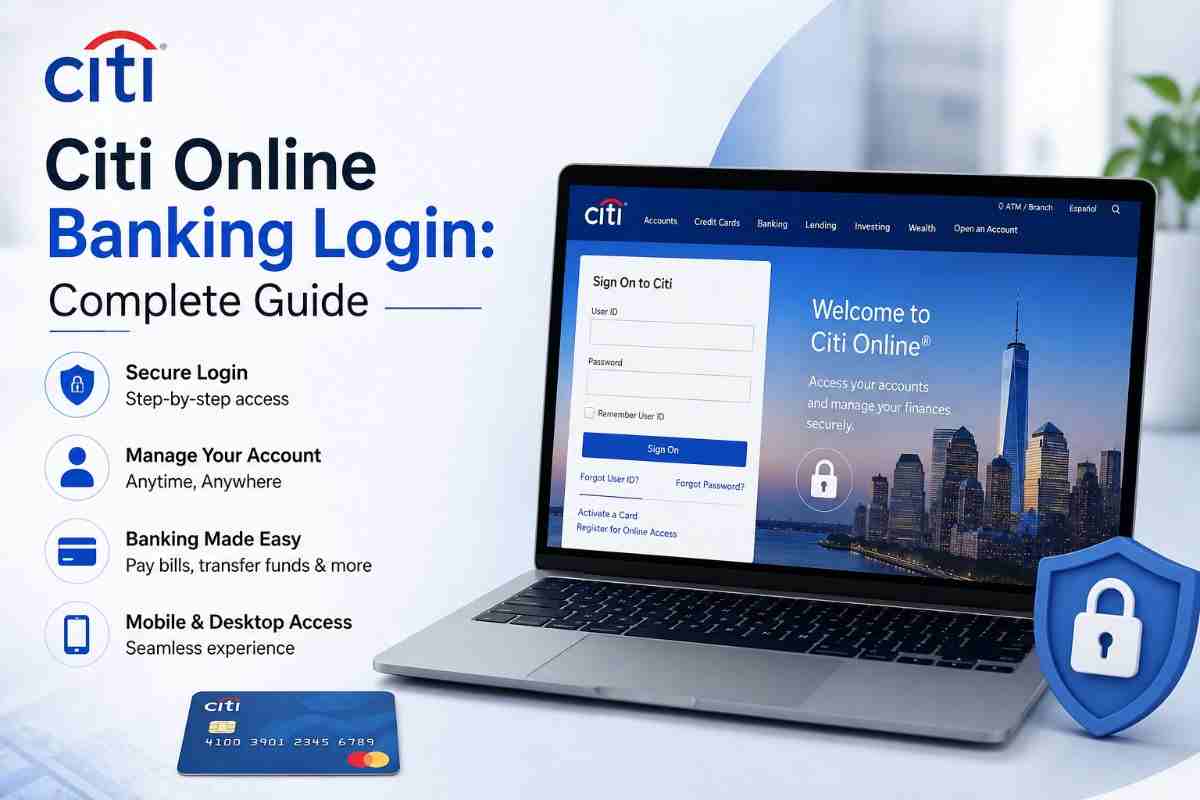
Step 2: Signing In to Your Citi Login
After you’ve registered, logging in becomes a simple two-field process:
- Visit the official Citi sign-on page.
- Enter your User ID and password in the login fields.
- Click Sign On.
If your account has extra security enabled, you may be asked to confirm a one-time code sent to your phone or email, especially when logging in from a new device or browser. This extra layer helps protect your information even if your password is ever compromised.
Step 3: Recovering a Forgotten User ID or Password
Forgetting login details happens to almost everyone eventually. Citi makes recovery straightforward:
| Situation | What To Do |
|---|---|
| Forgot User ID | Click “Forgot User ID or Password?” and select the account type, then follow the identity verification prompts |
| Forgot Password | Choose the password reset option, verify your identity via OTP, and set a new password |
| Account Locked | Wait for the cooldown period or contact customer service to unlock immediately |
| New Device Login Issues | Complete the two-step verification prompt sent to your registered phone or email |
Always complete these steps on Citi’s official site rather than clicking links from unsolicited emails or texts, since phishing attempts often mimic legitimate login pages.
Logging In Through the Citi Mobile App
Many customers prefer the mobile app for its speed and biometric login options. Here’s how to get started:
- Download the Citi Mobile App from the App Store or Google Play.
- Open the app and enter your existing User ID and password, or tap “Register” if you’re a first-time user.
- Once logged in, enable Face ID, fingerprint login, or a numeric passcode for faster future access.
- Use the app to check balances, deposit checks remotely, and receive push notifications for account activity.
The mobile app mirrors most of the features found on desktop, making the Citi login experience consistent no matter which device you use.
Common Login Issues and How to Fix Them
- Incorrect password errors: Double-check for caps lock or autofill mistakes, then use the reset option if needed.
- Browser compatibility problems: Clear your cache or try an updated browser; older versions can block secure login scripts.
- OTP not received: Confirm your phone number on file is current, and check your spam folder if you’re using email verification.
- Session timeouts: Citi automatically logs users out after a period of inactivity for security purposes — simply sign in again.
- Multiple failed attempts: Repeated incorrect entries can temporarily lock the account; use the recovery tools rather than guessing repeatedly.
Tips to Keep Your Citi Account Secure
Online banking is convenient, but it also requires a bit of vigilance. Consider these practical habits:
- Avoid using “Remember My User ID” on shared or public computers.
- Enable two-factor authentication if it isn’t already active.
- Change your password periodically and avoid reusing passwords from other sites.
- Monitor account alerts closely and report unfamiliar transactions immediately.
- Only access your account through the official website or verified app — never through links sent in unexpected emails.
Citi Login vs. Other Banking Apps
Compared with many regional banks, Citi’s platform stands out for combining checking, savings, credit card, and investment account access under a single sign-in. This unified approach means you don’t need separate credentials for each product, which simplifies password management and reduces the number of accounts you have to track.
Frequently Asked Questions
You’ll need your card or account number along with identifying details such as your date of birth or Social Security number, plus a way to receive a one-time verification code.
Yes. The desktop website offers the same core features as the app, including transfers, bill pay, and statement access.
This is a security measure called two-factor authentication, designed to confirm it’s really you signing in, particularly from unrecognized devices.
Change your password immediately, review recent transactions, and contact Citi customer support to report the activity.
It’s generally safe on a personal, password-protected device with biometric login enabled, but you should avoid saving credentials on shared or public devices.
Final Thoughts
Getting comfortable with your Citi login takes just a few minutes but pays off every time you need to check a balance, pay a bill, or catch a suspicious charge before it becomes a bigger problem. Whether you’re enrolling for the first time or simply brushing up on password recovery steps, the process is designed to be quick, secure, and accessible from almost any device.
If you found this guide useful, explore our related articles on managing credit card payments online and setting up mobile banking alerts, or share this guide with someone who’s just getting started with online banking.
About The Author