
How to Complete Citi Mobile Login: A Step-by-Step Guide for Secure Account Access
Step 1: Download and Initialize the Citi Mobile Application
Before you attempt your first Citi Mobile login, you need the right app installed correctly on your device. Citi offers dedicated mobile apps for both iPhone and Android platforms, making it straightforward to get started — but a few critical checks will protect you from phishing clones and setup mistakes.
Verify app authenticity first. Only download from the official Apple App Store or Google Play Store, and confirm the publisher is listed as “Citibank, N.A.” before tapping install. Unofficial lookalike apps are a real threat, so treat publisher verification as non-negotiable.
Follow these steps to get the app initialized properly:
- Select your OS-specific version. Search “Citi Mobile” in the App Store (iOS) or Google Play (Android), then confirm the correct publisher before downloading.
- Grant required permissions. On first launch, accept Location and Notification prompts — Location supports fraud detection, while Notifications deliver real-time transaction alerts.
- Complete Device Binding. First-time users will be prompted to register their device, linking it to their account as a trusted endpoint. This step anchors your session security going forward.
Once device binding is confirmed, the app is ready. With your environment fully prepared, the next critical step is entering your credentials accurately — including knowing the difference between a credit card-only login and full banking access.
Step 2: Enter Your Citi Online Credentials
With the app installed and initialized, the next task is completing your Citibank sign-in by entering your credentials accurately. This step covers how to input your User ID and Password, choose the right login path for your account type, and decide how to manage credential storage for future sessions.
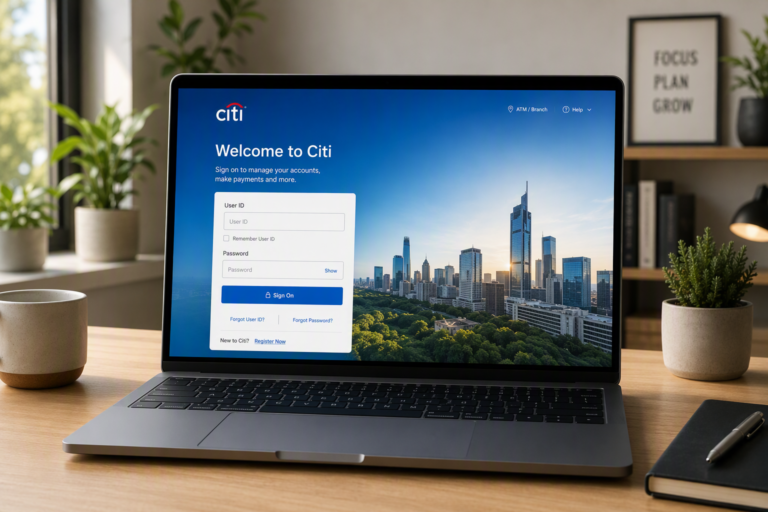
- Tap the “Sign On” button on the app’s home screen to open the credential entry interface. The screen presents two distinct fields: User ID and Password.
- Identify your account type before entering credentials. Credit Card-only holders use a separate login path from full banking customers — selecting the wrong path will return an authentication error, so confirm your account type first.
- Enter your User ID and Password carefully. Users must verify their User ID and Password while choosing between manual entry and auto-fill solutions — either approach works, but auto-fill tools can occasionally populate outdated credentials, so verify the populated values before proceeding.
- Toggle “Remember User ID” if you want the app to pre-populate your User ID on future visits. On the other hand, avoid enabling this feature on shared or public devices to protect your account.
- Confirm password manager behavior if you rely on one. Password managers tend to work better when the saved entry matches your current Citi password exactly — an outdated saved credential is a common source of failed logins.
- Tap “Sign On” to submit your credentials and advance to the next verification stage.
Once your credentials are accepted, Citi does not immediately grant full account access. A second verification layer activates to confirm your identity — and that is exactly what Step 3 covers in detail.
Step 3: Complete Multi-Factor Authentication (MFA)
After your Citi card login credentials clear the verification check, Citi triggers a secondary security layer before granting full account access. This step walks you through confirming your identity via multi-factor authentication (MFA), which Citi applies to new devices, unrecognized networks, and high-value transactions.
- Watch for the OTP prompt. Citi will automatically send a One-Time Password to your registered mobile number or email address. Check your SMS inbox first, since text delivery is typically faster than email routing.
- Enter the code within the time window. OTP codes expire quickly — usually within 30 seconds to 3 minutes. Type the code exactly as received, without spaces, and submit before the countdown expires. If the code times out, tap Resend Code to request a new one.
- Use the CitiDirect BE Mobile Token if applicable. Corporate and institutional users can log in using the CitiDirect BE® Mobile Token for enhanced security, bypassing standard SMS delivery entirely and generating a dynamic code directly within the token app.
- Respond to identity confirmation prompts. High-risk login attempts — such as access from an unfamiliar location or device — may trigger additional prompts, including security questions or push notifications to a previously verified device.
- Confirm and proceed. Once the correct code is accepted, Citi grants access to your full account dashboard.
Never share your OTP or Mobile Token code with anyone — Citi will never ask for this information by phone, email, or chat.
With MFA complete, you are inside your account. The next logical move is making future logins faster and equally secure by enabling biometric sign-on directly from your profile settings.
Step 4: Enable Biometric Sign-On for Future Access
Once your Citi login clears multi-factor authentication, you can set up biometric sign-on so that every subsequent session takes seconds rather than minutes. This step walks you through activating Face ID on iOS or fingerprint recognition on Android, understanding your fallback options, and knowing the security trade-offs on shared devices.
- Navigate to Profile Settings. After landing on your account dashboard, tap your profile icon in the upper-left corner. Select “Settings,” then choose “Security Preferences” to access the biometric configuration panel.
- Toggle the biometric option for your device. On iOS, enable the “Face ID” switch. On Android, tap “Fingerprint” or “Biometrics,” depending on your device model. The app will prompt you to authenticate once with your existing password to confirm the change.
- Confirm the biometric enrollment prompt. Your device will display a system-level dialog asking permission to share biometric data with the Citi Mobile app. Tap “Allow” or “Enable” to complete the handshake between your device hardware and the app.
- Verify your PIN or password fallback. Biometric access relies on a registered PIN or password as a backup. If the biometric scan fails three consecutive times, the app automatically falls back to this credential — confirm yours is current before finishing setup.
- Review shared-device security implications. Any fingerprint or face enrolled in your device’s system settings can unlock the Citi app. On a shared device, that means another enrolled user gains access to your account. [Corporate Insight notes that Citi tied for second place in the 2023 Credit Card Mobile Experience Benchmark](https://corporateinsight.com/new-digital-benchmarking-research-identifies-citi-chase-bank-of-america-and-u-s-bank-as-top-for-credit-card-digital-experience/), largely because of features like seamless biometric integration — but that convenience carries real risk on shared hardware. Consider enabling biometrics only on a personal device.
- Test the biometric login before relying on it. Log out fully, reopen the app, and authenticate with your face or fingerprint. A successful test confirms the setup is live and working correctly.
With biometrics active, future sessions bypass the full credential entry process while retaining the MFA layer for high-risk actions like wire transfers. That said, even a smooth setup can run into occasional hiccups — the next section covers exactly what to do when login errors appear.
How to Troubleshoot Common Citi Mobile Login Errors
Even after setting up biometric sign-on, you may occasionally hit a wall when trying to access your account. Understanding how to log into citi mobile app without friction means knowing how to diagnose and fix the most common errors before they escalate. The steps below move from the simplest fixes to more involved solutions.
| Problem | Solution |
|---|---|
| Incorrect credentials / account lockout | Reset password via “Forgot User ID/Password” link |
| App crash on launch | Clear app cache; reinstall if issue persists |
| Browser compatibility errors | Update to a supported browser or toggle hybrid view settings |
| Service outage confusion | Check Citi’s status page before troubleshooting locally |
- Reset locked credentials immediately using the “Forgot User ID or Password” prompt on the login screen. Waiting out a lockout window without resetting often extends the delay.
- Clear the app cache on Android via Settings > Apps > Citi Mobile > Storage, or delete and reinstall on iOS. Common issues include browser support conflicts and the need for manual cache clearing in the app environment.
- Verify browser compatibility if you use Citi’s hybrid web views; outdated browsers frequently trigger silent session failures.
- Check Citi’s service status before assuming the problem is local — an outage will look identical to a device-side error from your perspective.
- Restart your device entirely if the app continues crashing after a cache clear, as background memory conflicts on both Android and iOS can prevent a clean app launch.
- Contact Citi support at 1-800-374-9700 if credential resets and cache clearing fail to resolve the issue, particularly when lockouts persist beyond 24 hours.
Once your session is stable and errors are resolved, you are ready to explore everything your account dashboard offers — including multiple product types that may each require different navigation paths, which the next section covers in detail.
How to Manage Different Account Types After Login
Once your session is authenticated, the Citi app’s unified interface gives you centralized access to Credit Cards, Banking, Mortgage, and Personal Loans — all from a single dashboard. Navigating between these product areas is straightforward when you know the layout.
- Tap the main menu icon (typically three horizontal lines in the top corner) immediately after login to reveal the full product navigation panel, which lists every account type tied to your profile.
- Switch between Credit Cards and Banking by selecting the corresponding tab; each view loads its own transaction history, balance summary, and payment controls without requiring a separate sign-in.
- Open the Mortgage or Personal Loans portal by scrolling past the primary banking tiles — these sections display current balances, upcoming payment dates, and amortization details in a condensed card format.
- Navigate to ThankYou Rewards via the Rewards tab to check point balances, redeem for travel or gift cards, and access active Travel bookings made through the app’s built-in booking portal.
- Visit the Investing section (where available by account eligibility) to review portfolio performance or transfer funds between linked brokerage and banking accounts.
- Register a new bank account by selecting “Add Account” within the Banking section, then entering your routing and account numbers — the app typically verifies the link through micro-deposits within one to two business days.
With each product area accessible from one authenticated session, you avoid the friction of logging in separately across multiple platforms. Before exploring these features further, it is worth pausing to consider how to keep that unified session as secure as possible — which the next section addresses directly.
How to Secure Your Citi Mobile Session: Key Takeaways
With over 25 million active digital banking users in the U.S. as of March 2026, the stakes for mobile session security have never been higher. The steps below consolidate the most critical protective measures covered throughout this guide into a single, actionable sequence you can apply right now.
- Download exclusively from official app stores. Install the Citi Mobile app only from the Apple App Store or Google Play. Third-party sources frequently bundle credential-harvesting code alongside legitimate-looking interfaces, making official channels the first and most important line of defense.
- Enable multi-factor authentication immediately after login. Navigate to your security settings and activate MFA alongside biometric sign-on. This combination — something you know plus something you are — delivers the optimal balance of frictionless access and layered protection, particularly when using the CitiDirect BE Mobile Token for business accounts.
- Update the app on a regular schedule. Outdated versions lose compatibility with Citi’s backend infrastructure and miss critical security patches. Check your app store settings to enable automatic updates, or verify the current version weekly.
- Review active sessions periodically. Inside account settings, audit any registered devices and revoke access for hardware you no longer use. And if a session appears unfamiliar, terminate it immediately and reset your credentials.
- Apply browser compatibility checks when using online access. For desktop sessions, consult Citi’s browser support and troubleshooting guide to confirm your browser version meets current requirements before entering sensitive credentials.
- Consider a unified API integration layer for broader connectivity needs. Managing individual login credentials across multiple financial institutions introduces compounding risk. A unified bank connectivity solution tends to work better for scaling secure access without multiplying authentication vulnerabilities.
Applying these measures consistently reduces your exposure across every session type. The next section explores how a unified API approach can eliminate individual bank login friction entirely — a particularly valuable shift for fintech developers managing multi-institution data pipelines at scale.
How to Streamline Bank Connectivity with Easybankaccess
Maintaining individual bank connectors is one of the most persistent pain points in fintech development. Every institution — including Citi — updates its authentication flows, session handling, and security protocols on its own schedule, which means connector logic breaks unpredictably and requires constant maintenance. The steps below show how to move from fragile, single-bank integrations to a scalable, unified approach.
- Audit your existing connectors. Identify every manual login flow your application currently maintains, including Citi Mobile and any other institution-specific session handlers. Document where breakage occurs most frequently.
- Register for Easybankaccess API access. Sign up for a developer account to gain credentials that connect to thousands of bank integrations through a single endpoint, eliminating the need to manage institution-level authentication separately.
- Replace manual login sequences with API calls. Swap out credential-based session logic for standardized API requests. Real-time data retrieval replaces the friction of user-facing login flows entirely.
- Test data retrieval across multiple institutions. Validate that account balances, transaction histories, and account metadata return accurately — not just for Citi, but across your full integration scope.
- Scale your integration footprint. Add additional banks without writing new connectors. The unified API handles protocol differences at the infrastructure level, so your team focuses on product logic instead.
- Monitor and maintain through a single dashboard. Replace scattered, bank-specific error logs with centralized monitoring. When an institution updates its backend, Easybankaccess absorbs that change automatically.
The result: your team stops chasing individual bank authentication changes and starts building features. For fintech developers ready to eliminate manual login complexity at scale, Easybankaccess is the logical next step.
About The Author